Free Chrome extension · No account
Read EPUB, FB2 and MOBI books in Chrome
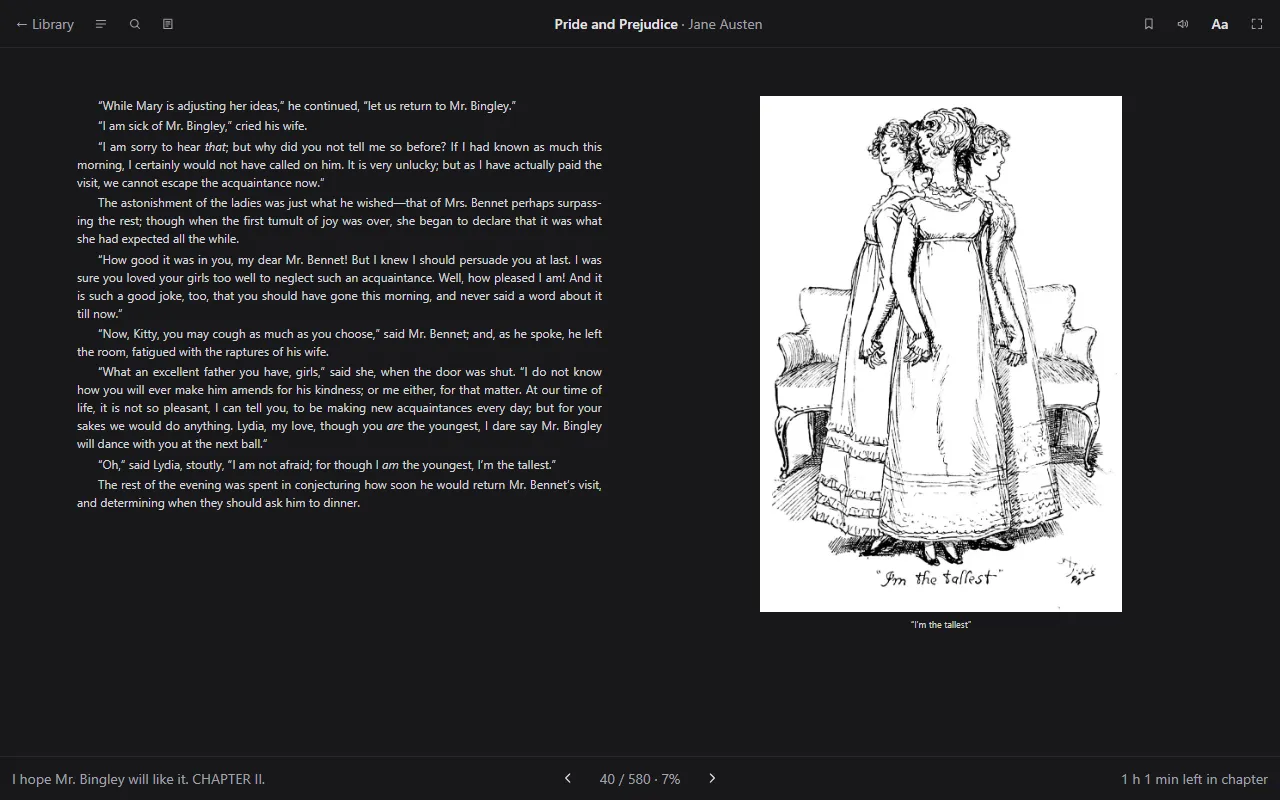
Readkave is a free ebook reader extension for Chrome. Open EPUB, FB2, MOBI, AZW3 and CBZ files in a browser tab and read them like a book: real pages, search, bookmarks, highlights, dark mode and read aloud. No account, nothing uploaded.
Works in Chrome and other Chromium browsers such as Edge and Brave. Desktop only: Chrome for Android and iOS has no extensions.
Formats it opens
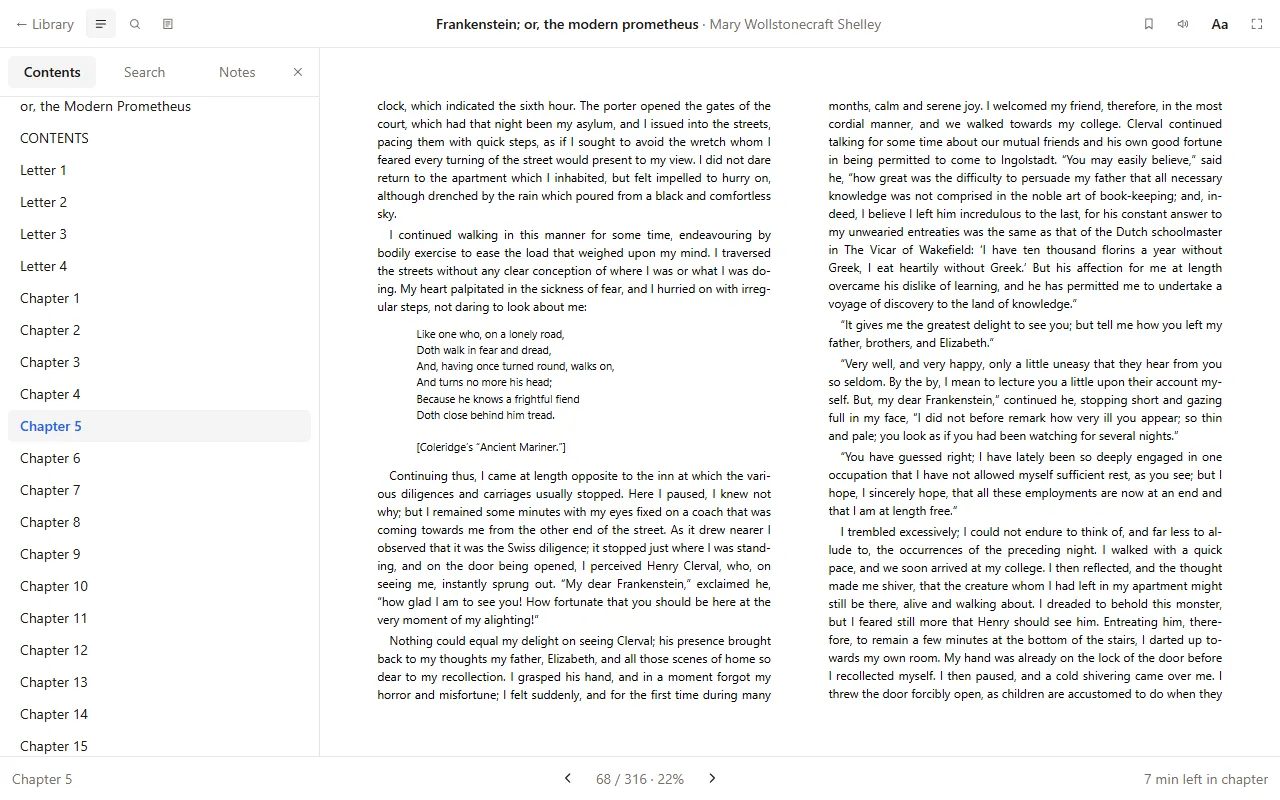
EPUB reader
The standard ebook format of shops and libraries. EPUB 2 and EPUB 3.
FB2 reader
FictionBook, the usual format of Russian-language ebooks. Also FBZ and FB2.ZIP.
MOBI & AZW3 reader
Kindle files without DRM, such as Project Gutenberg's Kindle downloads.
CBZ comic reader
Comics and manga packed as CBZ, one page per screen.
A reader, not a file viewer
Library
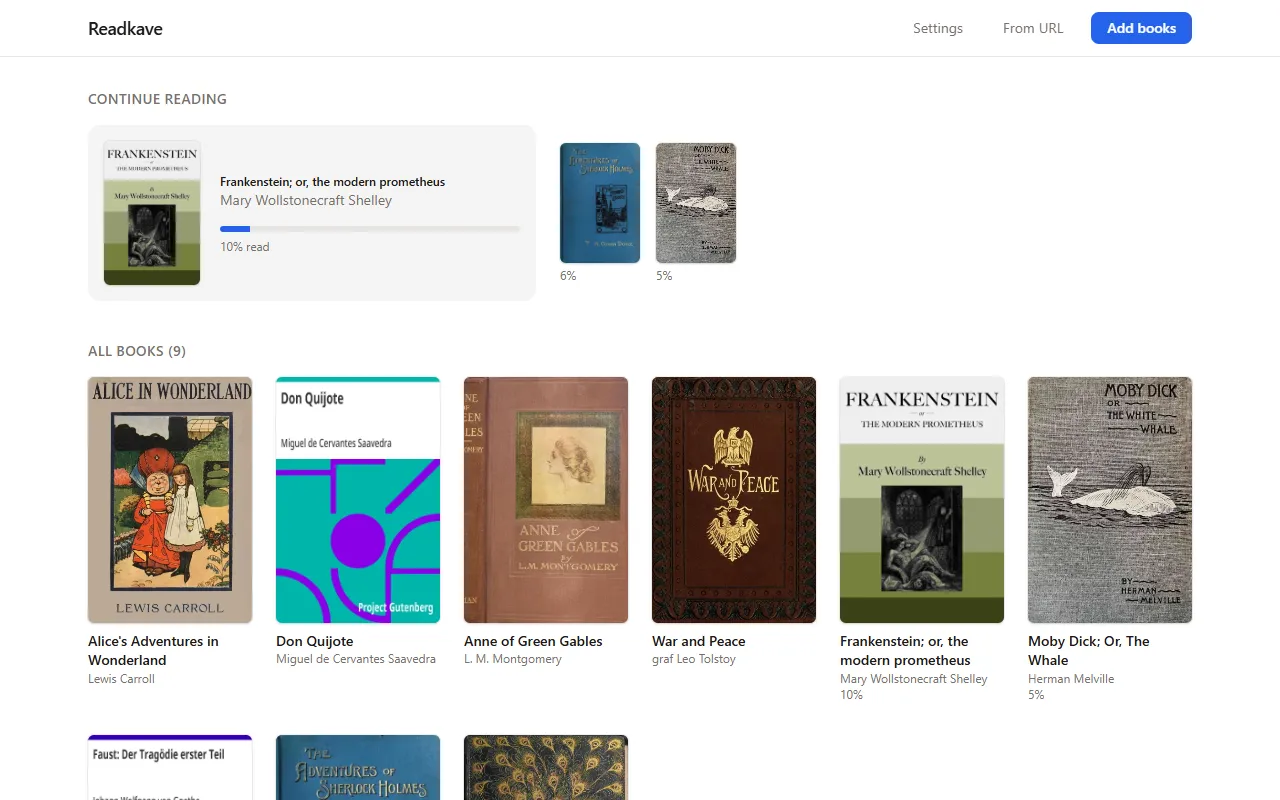
All your books on one shelf
Drop files in, or right-click an ebook link on any website. Covers, Continue reading, and your place saved in every book.
Search
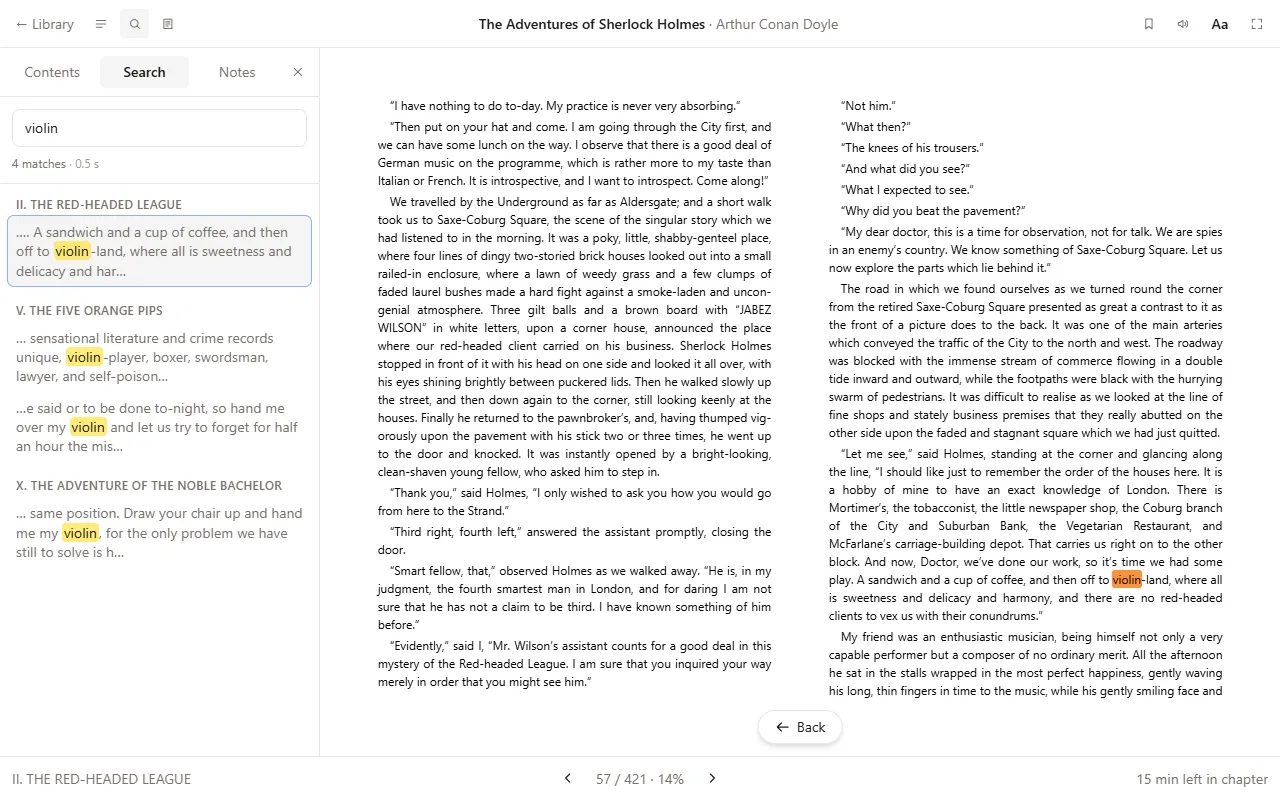
Find any line in seconds
Every match in the whole book, grouped by chapter and marked on the page. Jump to it, then come back with Back.
Highlights & read aloud
Mark it, note it, listen to it
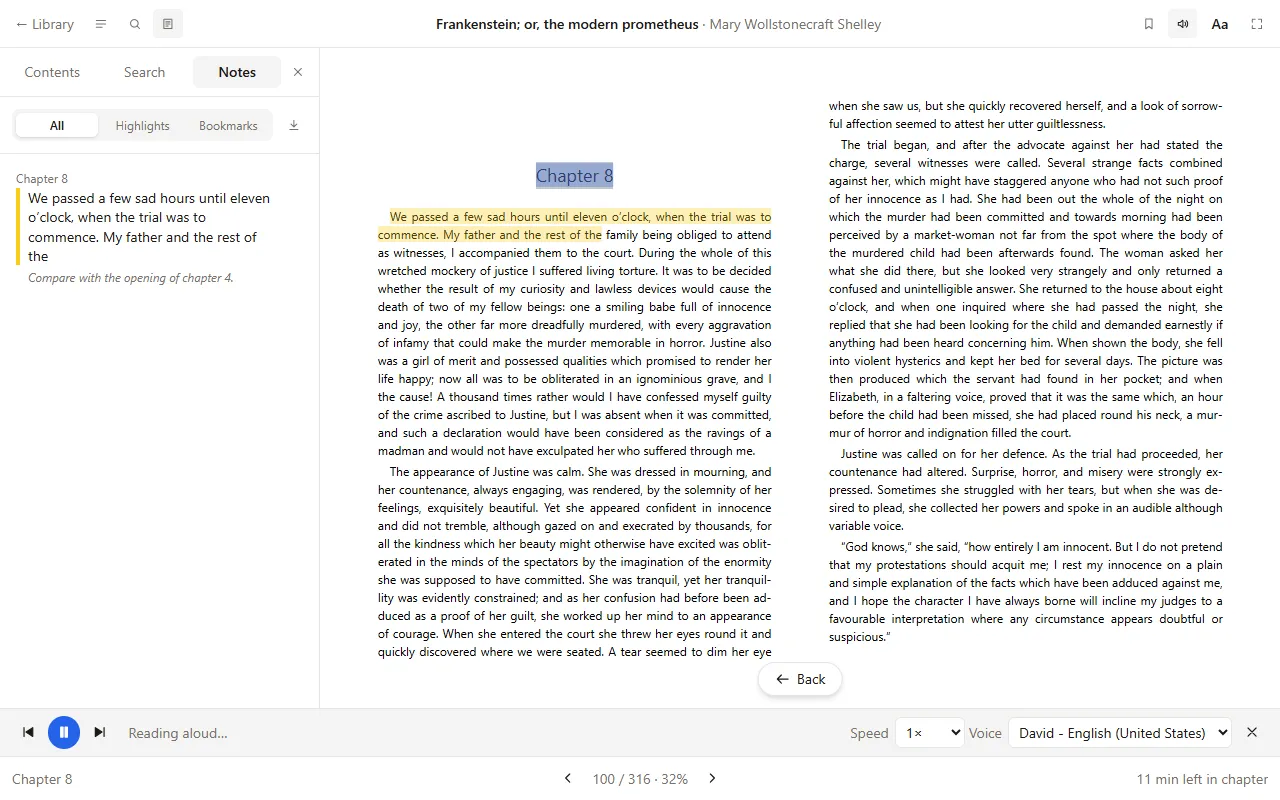
Highlights in four colours, notes on any passage, and your browser's voices reading with the sentence lit up. Select a word for its meaning or a translation.
Themes
A dark mode that really works
Light, sepia and dark themes recolour even books with their own styling. Choose the font, size, spacing and one or two columns.
What you get
Pages that turn
One page at a time, no skipped chapters, no flicker. Or scroll mode, if that is how you read.
Search the whole book
Every match, grouped by chapter, in seconds, even for a thousand-page novel.
Highlights and notes
Four colours, notes on any passage, bookmarks, and a plain-text export of all of it.
Dark mode that works
Light, sepia and dark themes that override a book's own colours instead of fighting them.
Read aloud
Your browser's voices, from any sentence, with the text highlighted as it is read.
Words explained
Select a word for a definition (Wiktionary) or a translation (Chrome's built-in translator).
Three ways to open a book
- Drop it in. Click the Readkave icon, then drop a file into the library (or use Add books).
- Double-click files. Turn on "Open ebook files in Readkave" once; downloaded and opened books go straight to the reader. Setup takes a minute.
- Right-click a link. On any website, right-click an ebook link and choose "Open in Readkave".
Readkave works in Google Chrome and in other Chromium browsers, such as Microsoft Edge and Brave.
Questions
Can Chrome open EPUB files by itself?
No. Chrome has no built-in ebook reader: it downloads .epub, .mobi and .azw3 files and shows .fb2 files as raw XML code. You need a reader. An extension such as Readkave opens them in a browser tab; on the desktop, Calibre or Thorium Reader do the same.
Which book formats can Chrome open without an extension?
Only PDF and plain text. EPUB, FB2, MOBI, AZW3 and CBZ all need an extension or a separate app. Readkave adds those five, plus TXT read as a book.
Does reading in the browser upload my books anywhere?
It depends on the extension; read its privacy policy. Readkave keeps books, positions and notes on your computer and makes no request unless you ask it to, for example by opening a link or looking up a word.
Can I read without an internet connection?
With a reader that stores the book locally, yes. In Readkave a book opens offline once it is in your library; only word definitions need the internet, and translation runs on your computer after Chrome has downloaded the language pack once.
Can I read books in Arabic, Japanese or Russian in Chrome?
Yes, if the reader handles the script. Readkave shows right-to-left text (Arabic, Hebrew), vertical Japanese and older Russian, Chinese and Japanese encodings, and its interface is in 16 languages. Read aloud depends on the voices your computer has.
Can I read Project Gutenberg books in the browser?
Yes. Every Gutenberg book comes as EPUB, and its "Read now" link opens an HTML version in any browser. For real pages, bookmarks and a remembered position, open the EPUB in a reader: with Readkave, right-click the EPUB link and choose "Open in Readkave".
Privacy
- Books, highlights and reading positions are stored only in your browser.
- No account, no ads, no analytics, no tracking.
- The internet is used only when you ask: opening a link, looking up a word, translating. Full privacy policy.
Ready to read?
Free, no account, works offline. Add it to Chrome and drop in your first book.